Extending Your Call Center’s Life

While the CCaaS providers want you to think that everyone is fleeing to the cloud and the traditional on premise CC providers want you to think that the shift is very slow, the truth is somewhere in the middle. One thing we can be sure of is that all of our on premise customers are doing this:
4g04ry

Every vendor is playing defend and take over. The days of an Avaya IVR with a Cisco ACD are starting to go the way of the dinosaur. Really no one is interested in playing reach out and integrate, but this is where the most value is present and where I think we, as consultants, should be focusing our energy. Let’s look at a couple of scenarios where reach out and integrate make sense.

Scenario 1: You’re on an old ACD which, while still supported, your only upgrade path is to go cloud as the vendor has stopped on-premise development. You are not sold on going cloud and are considering replacing your current platform with another on premise solution.

Scenario 2: There is a worldwide state of emergency, let’s pretend a pandemic is happening, and you need to spin up small clusters of call centers quickly to handle increased demand due to new customer requests. You’re projecting that these call centers and agents might only be online for a maximum of a year so you want to avoid having to purchase perpetual licenses and new hardware to handle these new capacity long term.

Scenario 3: Business is absolutely booming and the two server solution you love has reached capacity. The only way to scale is to go to a completely different solution, but you absolutely love your current system and you don’t have enough data to make a decision to replace your system or not.

We are seeing a lot of requests coming in which fit the above 3 scenarios and we have spent a lot of time figuring out what the perfect reach out and extend strategy is for each request.  I would love to hear what other scenarios or interesting pairing others have run into or are currently working on. I’ll be posting more about one interested pairing we’ve made and the solution we’ve developed to increase the life of our customer’s call center.

~david

Do virtual agents need virtual breaks?

If you’ve been paying attention to the contact center world you would have noticed the rise of virtual agents. The term is a bit broad and confusing to be honest, but here’s my take on it. Virtual agents are just a rebranding of self service with a lot more personality and capabilities. For example, you could always make a payment online, but before the flow was:

  • For account information press 1. “1”
  • Please enter your account number. “1234”
  • To hear your balance press 1. “1”
  • To make a payment press 1. “1”

Now with virtual agents the flow is a lot more flexible:

  • What would you like to do? “I want to a pay my account.”
  • What’s your account number? “1234”
  • Would you like to pay your account in full? “yes”

Now with the rise of virtual agent services you can use speech, TTS, send out an SMS, process a credit card and integrate with a backend all within the same platform and under the same cost. The rise of these agents aligns perfectly with the proliferation of AI services such as DialogFlow, AWS Comprehend, and even MindMeld (RIP) which have removed a lot of the complexity in delving in to AI/Machine Learning. Additionally, the XaaS model where you don’t have to buy the cow, care for it, feed it. All you do is rent it when you want some milk.

The other huge benefit a lot of these virtual agents tout is the ability to be multichannel out of the box. You no longer have to build parallel logic for voice and SMS. You now have a single place for all your logic and can go to Facebook messenger or WhatsApp. While this is partially true, the customer experience across different channels does need to change and the reality is that you should be building semi-parallel logic depending on your channel.

Ultimately, I’ve started dabbling in this space and got my Inference certification. I’m looking forward to getting more and more exposure with this technology and get a deeper understanding how it really augments the contact center world I know and love.

~david


WireShark RTP Player

Troubleshoot RTP issues with WireShark when using Jabber or IP Communicator

This was an interesting one that I wanted to document. We have our agents and supervisors on either VDI Jabber or Windows Jabber or CIPC and we could not get silent monitoring to work. When the supervisor activated it everything looks correct, but there was no audio for the supervisor while the agent and caller had no issues. Supervisor could then barge in to the call and audio would work just fine. Here are the steps we took to troubleshoot this.

  1. Get the IP addresses of the agent and supervisor device. Then get a packet capture of both end points while performing silent monitoring.
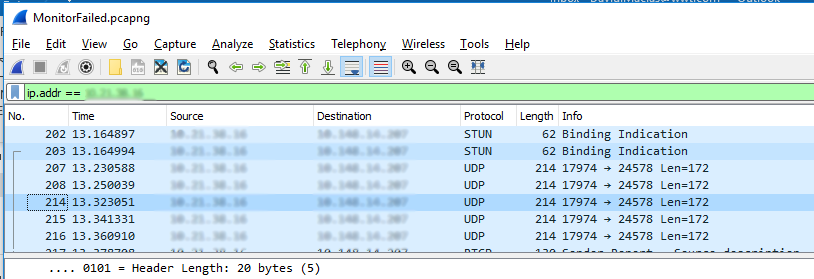
  2. Using this filter get all the packets coming from the other device to your computer: ip.addr == {other parties IP}. You should see a good bit of UDP packets. At this point if you don’t see any packets coming from the other endpoint you know that more than likely the network or far end device configuration is at fault as your device didn’t send or receive any RTP.
Wireshark Packet Capture

Wireshark Packet Capture

3. Click click on any of the packets Decode As… Set Current to RTP.

WireShark Decode Packets

WireShark Decode Packets

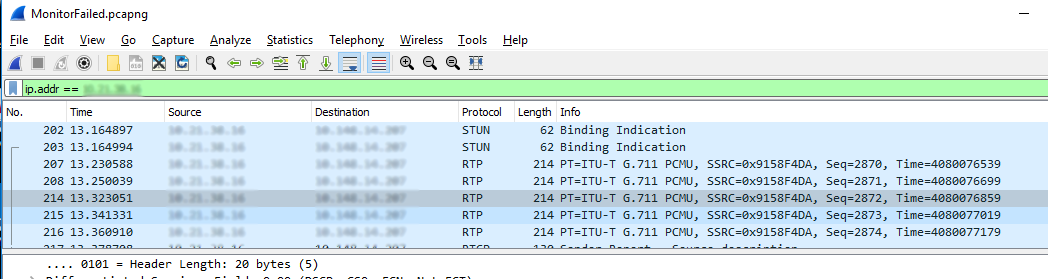
4. All your previous UDP packets should now be RTP packets.

WireShark Decoded Packets as RTP

WireShark Decoded Packets as RTP

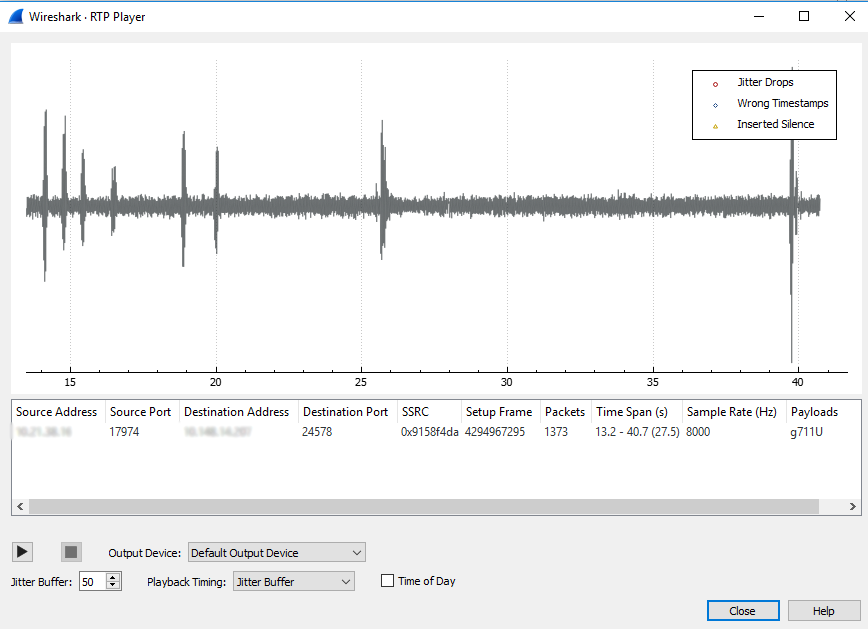
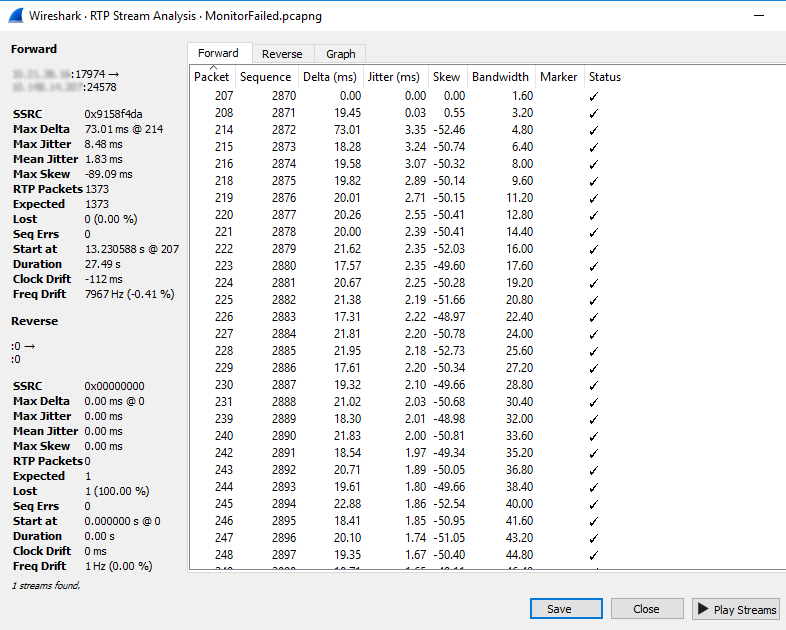
5. Go to Telephony > RTP Streams and Analyze the stream that is detected. You will then be able to Play Streams to confirm you get the expected audio.

WireShark RTP Stream Analysis

WireShark RTP Stream Analysis

6. Confirm audio stream is correct.

WireShark RTP Player

WireShark RTP Player

At this point we’ve confirmed our device is getting RTP, but our soft phone isn’t playing it. So a likely culprit could be the Windows firewall. Using your favorite text editor go to c:\Windows\System32\LogFiles\Firewall and open domainfw.log and publicfw.log. What you want to look for is the IP of the other device and see if you see any drops.

2020-01-01 12:03:48 DROP UDP {RemoteIP} {LocalIP} 17488 24576 200 – – – – – – – RECEIVE

If you look at the port this was received on you’ll notice that it is the RTP range Cisco recommends to have open. So at this point you can disable the firewall, which I don’t recommend, or create a new firewall rule and add UDP ports 16384-32767 as allowed.

~david